Tokens
What tokens are, where you see your usage, and how to top up when you run out.
What are tokens?
Tokens measure how much AI work your designs take. Each import into transjt uses tokens, depending on how complex the design is. Exports to HubSpot or WordPress use no tokens.
How many tokens you have
Each subscription includes a monthly token amount, including the free Starter plan. The amounts per plan are on the pricing page.
You see your usage in two places in the app:
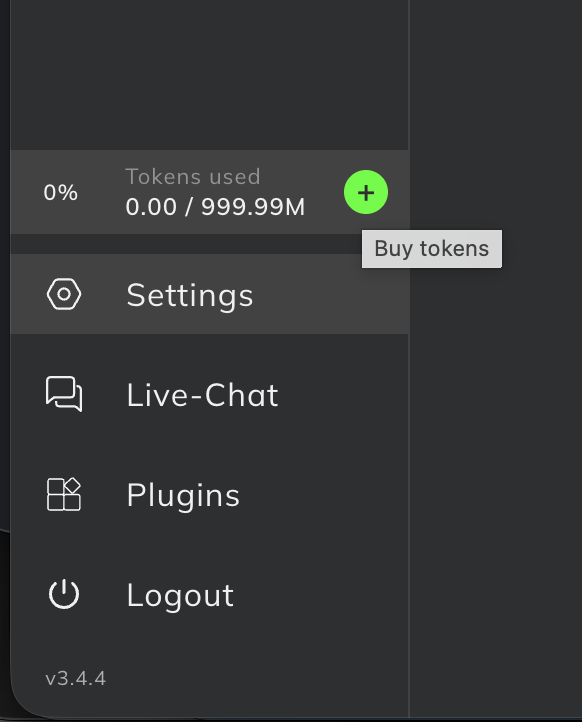
- the token counter at the bottom of the left menu,
- Settings > Subscriptions, under Tokens used.
Top up tokens
Ran out of tokens before the month is over? Buy as many extra tokens as you need, without changing your plan.
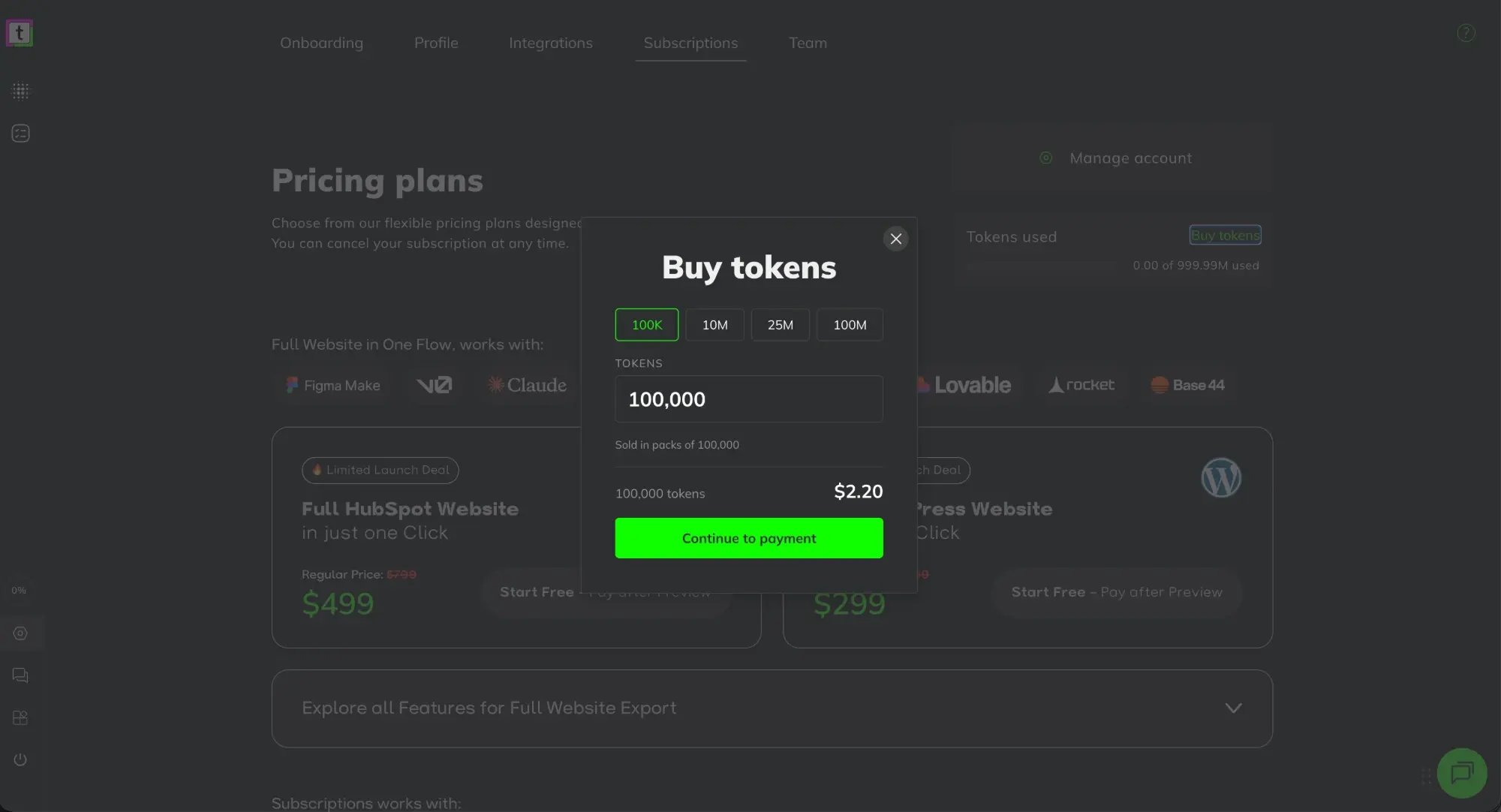
- In transjt, open Settings > Subscriptions and click Buy tokens next to Tokens used. Or click the + next to the token counter in the left menu.
- Pick an amount: 100K, 10M, 25M or 100M. Or type your own amount under Tokens. Tokens are sold in packs of 100,000.
- Check the price shown for your amount and click Continue to payment.
Purchased tokens are charged right away and are non-refundable once they are used. See the Terms of Service.
Unused tokens
Unused tokens for subscription
Unused tokens from your monthly amount do not roll over to the next billing period.
Unused top-up tokens
Unused tokens from your purchase roll over and remain.
Which tokens are used first
If you have both, transjt uses the tokens from your monthly amount first. Your purchased tokens are only used after that.
Earn extra tokens
Complete the setup checklist
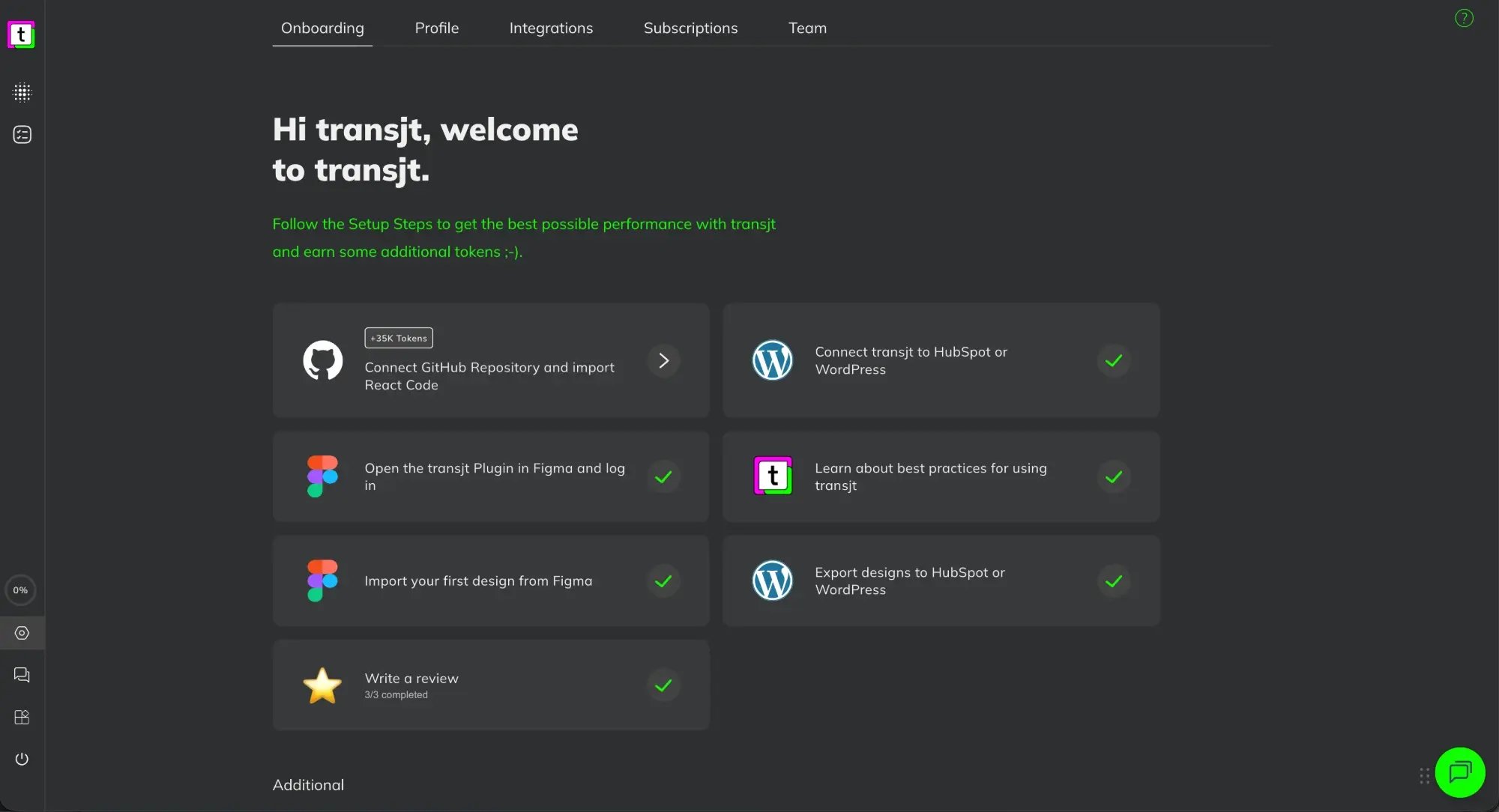
Under Settings > Onboarding you find the setup steps. Steps that still earn tokens show a badge with the amount, for example +35K Tokens:
- Connect GitHub Repository and import React Code
- Connect transjt to HubSpot or WordPress
- Open the transjt Plugin in Figma and log in
- Learn about best practices for using transjt
- Import your first design from Figma
- Export designs to HubSpot or WordPress
- Write a review (see below)
Finished steps get a green check mark.
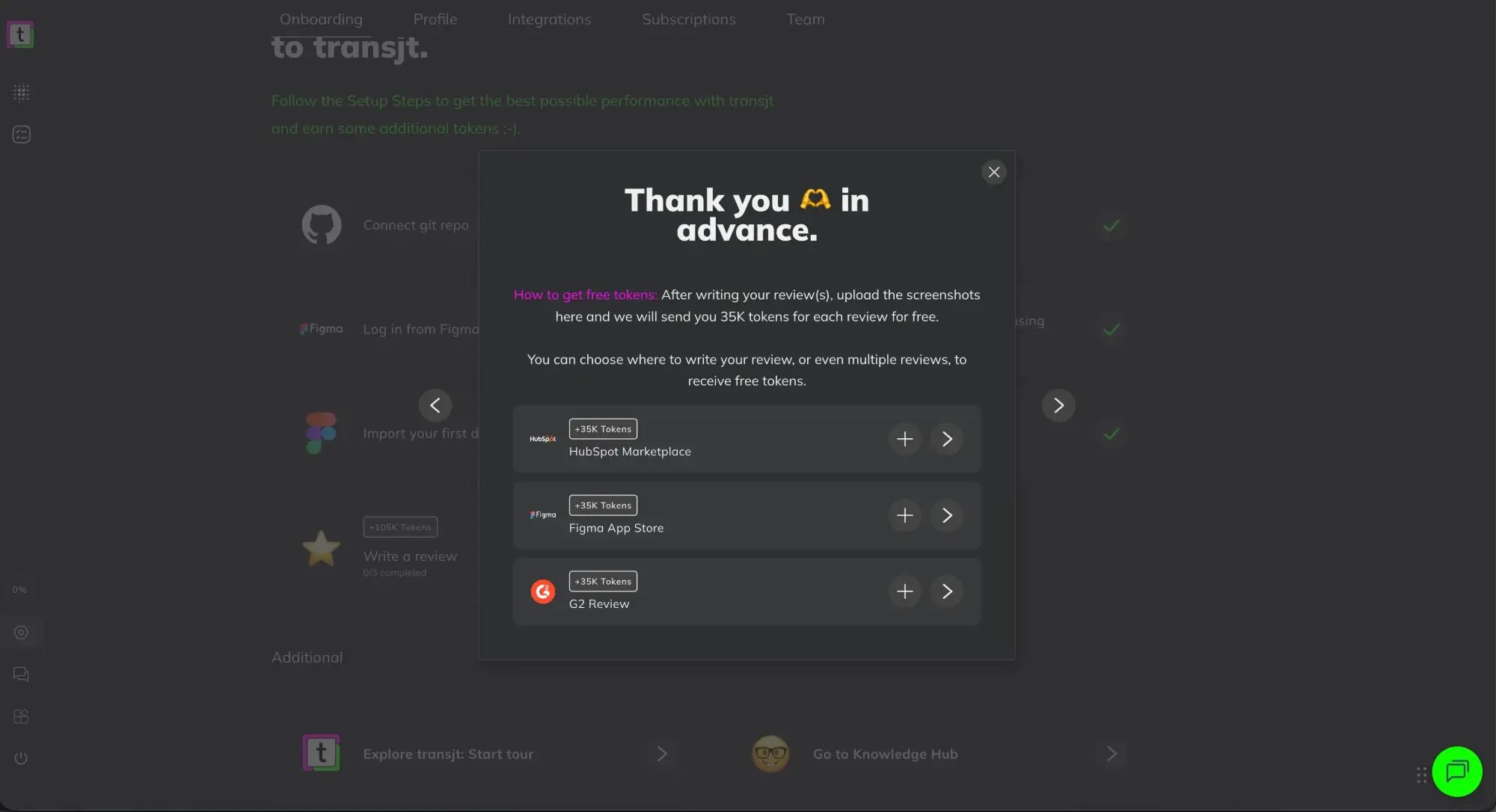
Write a review: 35K tokens each
Write a review about transjt and get 35,000 tokens for each review, for free. You can review on up to three platforms, so up to 105,000 tokens:
- Open Settings > Onboarding and click Write a review.
- Click the arrow next to a platform to open its review page, and write your review there.
- Take a screenshot of your published review.
- Back in transjt, click + next to the platform and upload the screenshot. We send you the tokens.