Plans
Two ways to pay: a subscription for Figma imports, or a one-time export for a full website from GitHub.
Which option do I need?
| You want to | Choose |
|---|---|
| Import Figma designs, component by component | A subscription |
| Export a full website built with an AI tool | The one-time full website export |
Subscriptions (Figma)
| Plan | For |
|---|---|
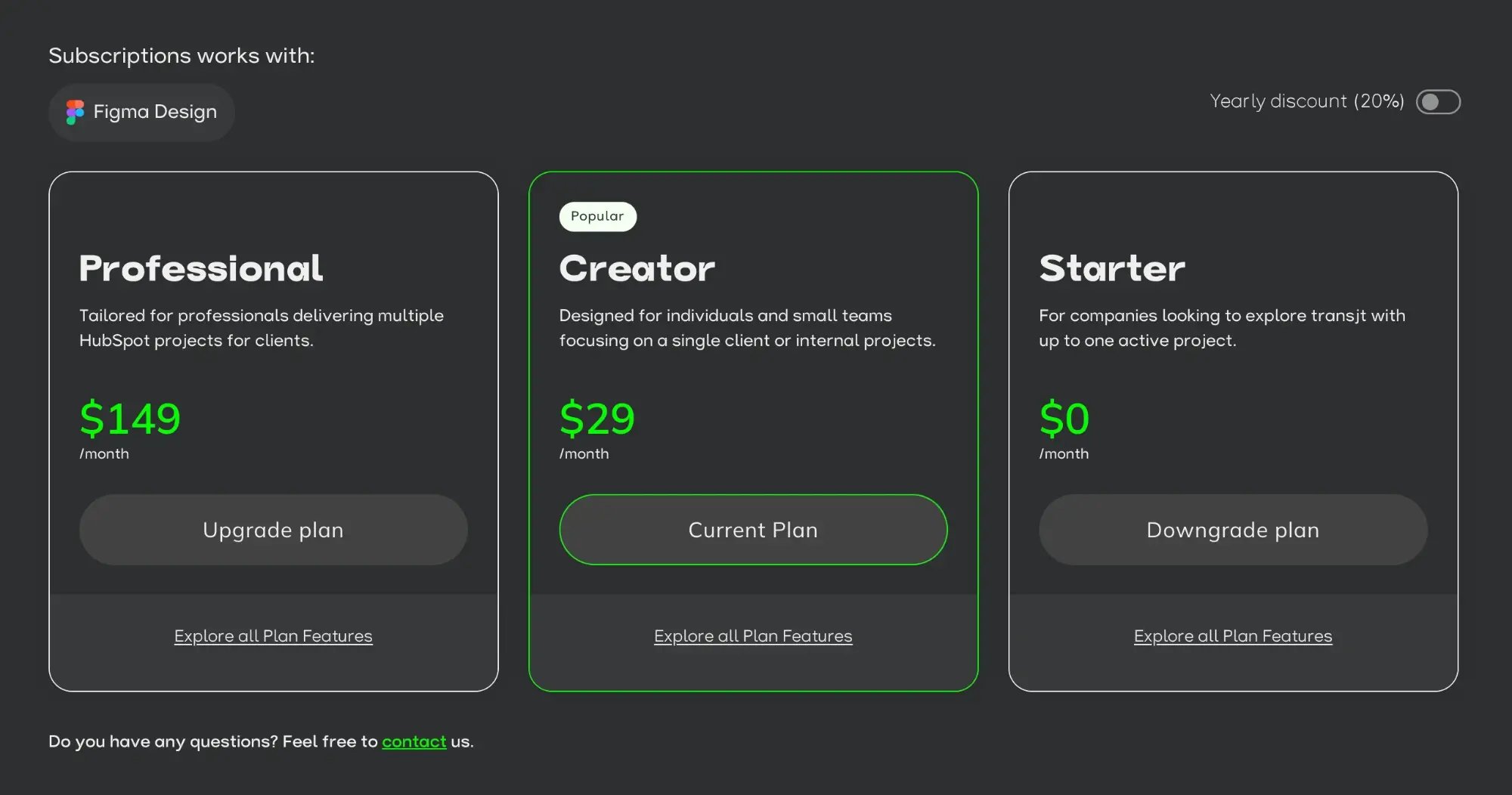
| Starter (free) | Trying transjt with one active project |
| Creator | A single client or an internal project |
| Professional | Agencies with several client projects on HubSpot and WordPress |
| Enterprise | On request |
Current prices and limits are on the pricing page. Manage or upgrade your plan any time under Settings > Subscriptions.
Full website export (GitHub)
A one-time payment for one complete website, for HubSpot or WordPress. You start for free and pay after the preview. The theme is ready within a few hours.
This option comes with a money-back guarantee. See the pricing page and the Terms of Service for the conditions.
Imports use tokens from your plan. How tokens work and how to top up: see Tokens.
Invoices and payment details
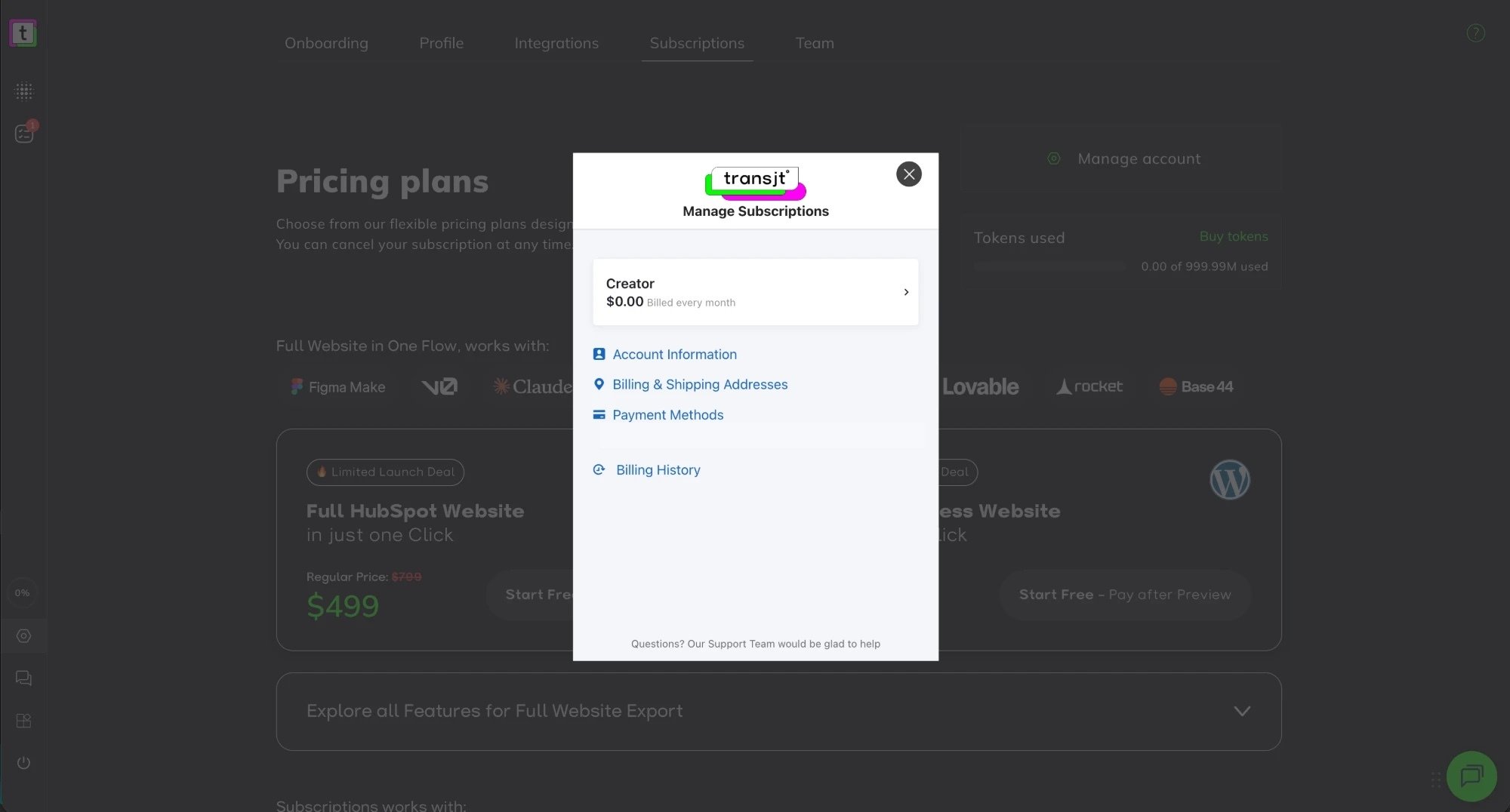
Open Settings > Subscriptions and click Manage account. Manage Subscriptions opens with your current plan and these options:
- Account Information
- Billing & Shipping Addresses
- Payment Methods, to add or update your card
- Billing History, with your invoices
Change, downgrade or cancel your plan
You can change or cancel your subscription at any time.
Upgrade or downgrade your plan
- Open Settings > Subscriptions.
- On the card of the plan you want, click Upgrade plan or Downgrade plan. Your plan shows Current Plan.
- Confirm the change in the popup.
Want to pay yearly? Switch on Yearly discount (20%) above the cards before you choose a plan.
Cancel your subscription
To cancel your subscription:
- Open Settings > Subscriptions.
- Click Manage account.
- In the popup, click the name of your current plan (Starter, Creator or Professional).
- Click Cancel Subscription.
When the change takes effect
A downgrade or cancellation takes effect at the end of your current billing period. Until then, you keep your current plan with all its features. This is the same for monthly and yearly plans.
Subscription fees already paid are not refunded. The money-back guarantee applies only to the one-time full website export. See the Terms of Service.
What happens to your work
- Your projects remain. Nothing is deleted when you downgrade or cancel.
- Your exports keep working. Everything you exported stays in your CMS. The theme is yours.
- Unused tokens do not roll over. Tokens from your old plan expire with the billing period.
One-time full website export
The one-time export is not a subscription, so there is nothing to cancel. For the money-back guarantee, see the pricing page and the Terms of Service.