Figma plugin
Install the transjt plugin, log in, and send your Figma components to a transjt project.
- Price: the plugin is free. Imports use tokens from your transjt plan, and the Starter plan is free.
- Where: in the Figma Community, or in Figma under Plugins & Widgets (search "transjt").
- You need: a Figma account with a design file you can edit, and a transjt account.
- Exports to: HubSpot CMS and WordPress, via the transjt app.
What the plugin does
The transjt plugin connects Figma with the transjt app. You select layers in your Figma file and send them to a transjt project. There they are converted into components, which you preview and then export to HubSpot or WordPress.
Get the plugin
Option 1: from the Figma Community
- Open the transjt plugin page in the Figma Community.
- Open it in your Figma file from there.
Option 2: inside Figma
- Open the design file you want to convert.
- Open the actions menu (Cmd + K on Mac, Ctrl + K on Windows) and switch to Plugins & widgets.
- Search "transjt" and click the plugin to run it.
Once you have used it, Figma lists the plugin under your recently used plugins, so you can start it again with one click. You also find the link in the transjt app under Plugins.
Log in
The plugin uses the same account as the transjt app. Log in with Figma, Google, HubSpot, GitHub or your email and password. No account yet? Click Sign Up in the plugin.
At the bottom of the plugin you see the plugin version and the account you are logged in with, and you can log out there.
Import a design
- Under Select type, choose what you are importing:
- Component for a section of a page, such as a hero, a feature grid or a footer.
- Blog for the blog listing layout.
- Blog Detail for the layout of a single post.
- Under Projects, pick the project to import into, or click Create Project and give it a name.
- In Figma, select the layers you want to convert.
- Click Import to transjt.
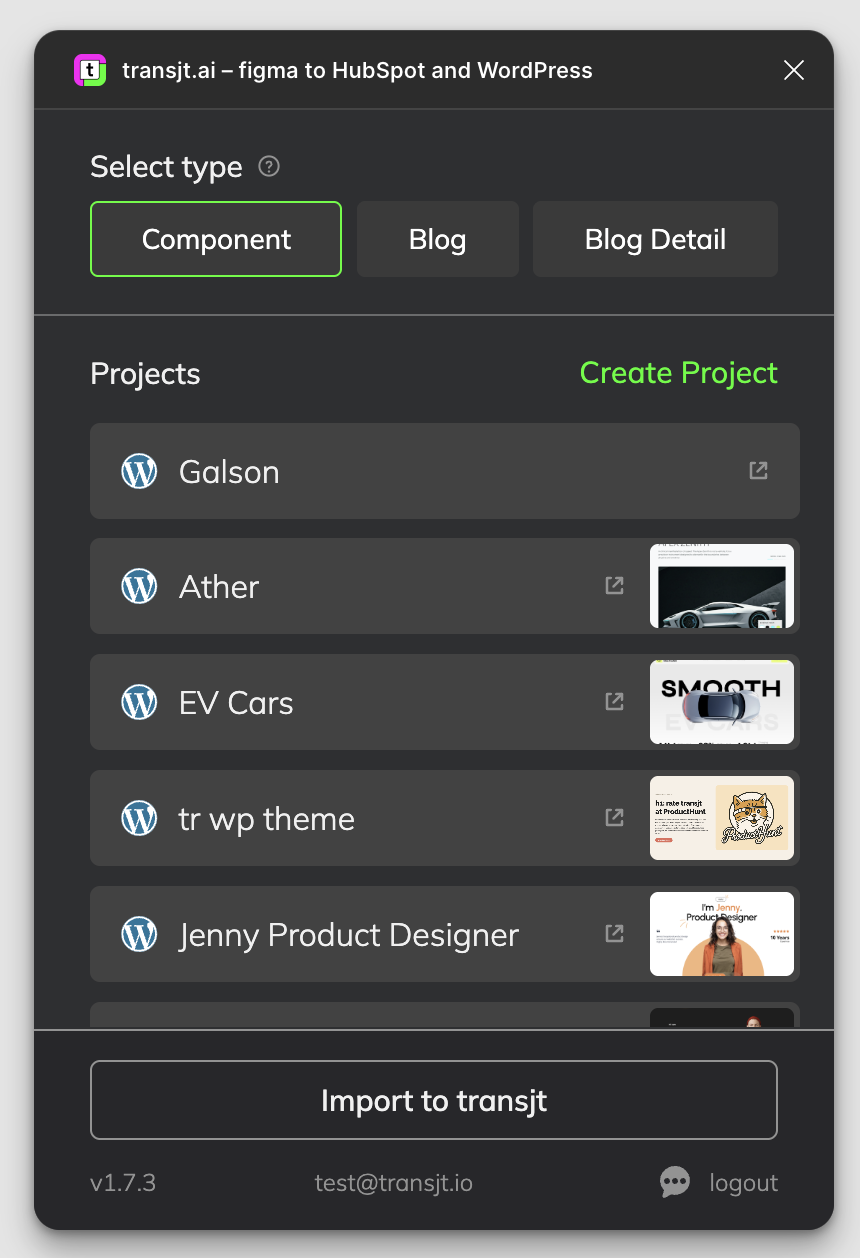
The selected components are transferred to your project in the transjt app. Continue there with Preview and Export.
Import again after design changes
Changed a component in Figma? Import it again the same way. When the component already exists in HubSpot, transjt asks in Tasks whether to replace it or keep the existing one. Click Continue to go on.
Tokens
Each import uses tokens from your subscription, depending on how complex the design is. Exports use none. More in Tokens.
Tips for better results
- Import components, not whole pages. A full page is not split into sections.
- Use Auto Layout, and group and name your layers.
More in Designing for transjt.