For developers
Add your own CSS and JavaScript to a transjt theme with custom.css and custom.js. Both stay in place when you export again.
Where your changes belong
Every transjt theme comes with two files reserved for your own code:
- custom.css for styles
- custom.js for scripts
They load after everything transjt generates, so your rules win without !important in most cases.
custom.css and custom.js as they are. Generated modules and theme files can be replaced, so put your adjustments there, not in the generated files.Find the files
- In HubSpot, go to Content > Design Manager.
- Open the folder transjt projects, then your project's folder. It starts with
tj-, followed by the project name, for exampletj-northbeam-claude. custom.cssis in the css folder,custom.jsin the js folder.
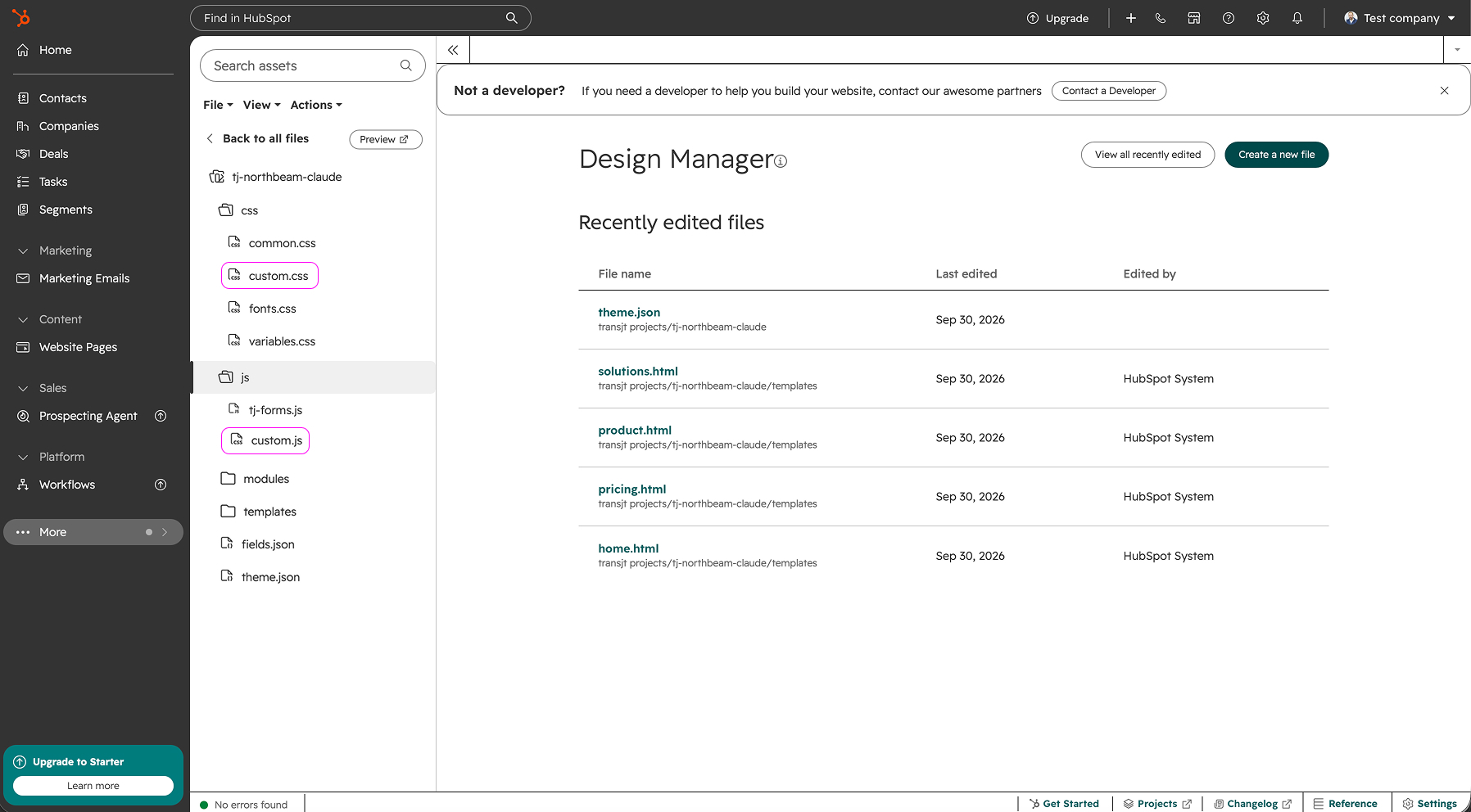
Edit in the Design Manager
- Open
custom.cssorcustom.js. - Add your code at the end of the file.
- Click Publish changes.
Live pages pick up the change the next time they are published. To see it right away, open the page in HubSpot and click Update.
Edit locally with the HubSpot CLI
If you prefer your own code editor, use the HubSpot CLI. Download the theme:
hs cms fetch "transjt projects/tj-<your-project>" ./my-themeEdit css/custom.css or js/custom.js, then upload the file, for example:
hs cms upload ./my-theme/css/custom.css "transjt projects/tj-<your-project>/css/custom.css"Or run hs cms watch to upload every change while you work.
Example: adjust a module
Inspect the element in your browser to find the class of the module you want to change, then target it in custom.css:
/* Example: larger hero headline on mobile */
@media (max-width: 767px) {
  .hero__title { font-size: 2.25rem; }
}
The class name above is only an example. Use the class you find in your own theme.
Good practice
- Keep all adjustments in
custom.cssandcustom.js. Changes to generated files can be lost when you export again. - Scope your rules to a module class, so they don't affect other parts of the site.
- Comment what each block of CSS is for. The next developer will thank you.