Connecting GitHub
Connect your GitHub account so transjt can import the code your AI builder created.
Before you start
- A GitHub account with access to the repository you want to import.
- Your code in a GitHub repository. Most AI builders, such as Lovable, v0, bolt.new or Claude Code, can push to GitHub directly.
Option 1: connect in Settings
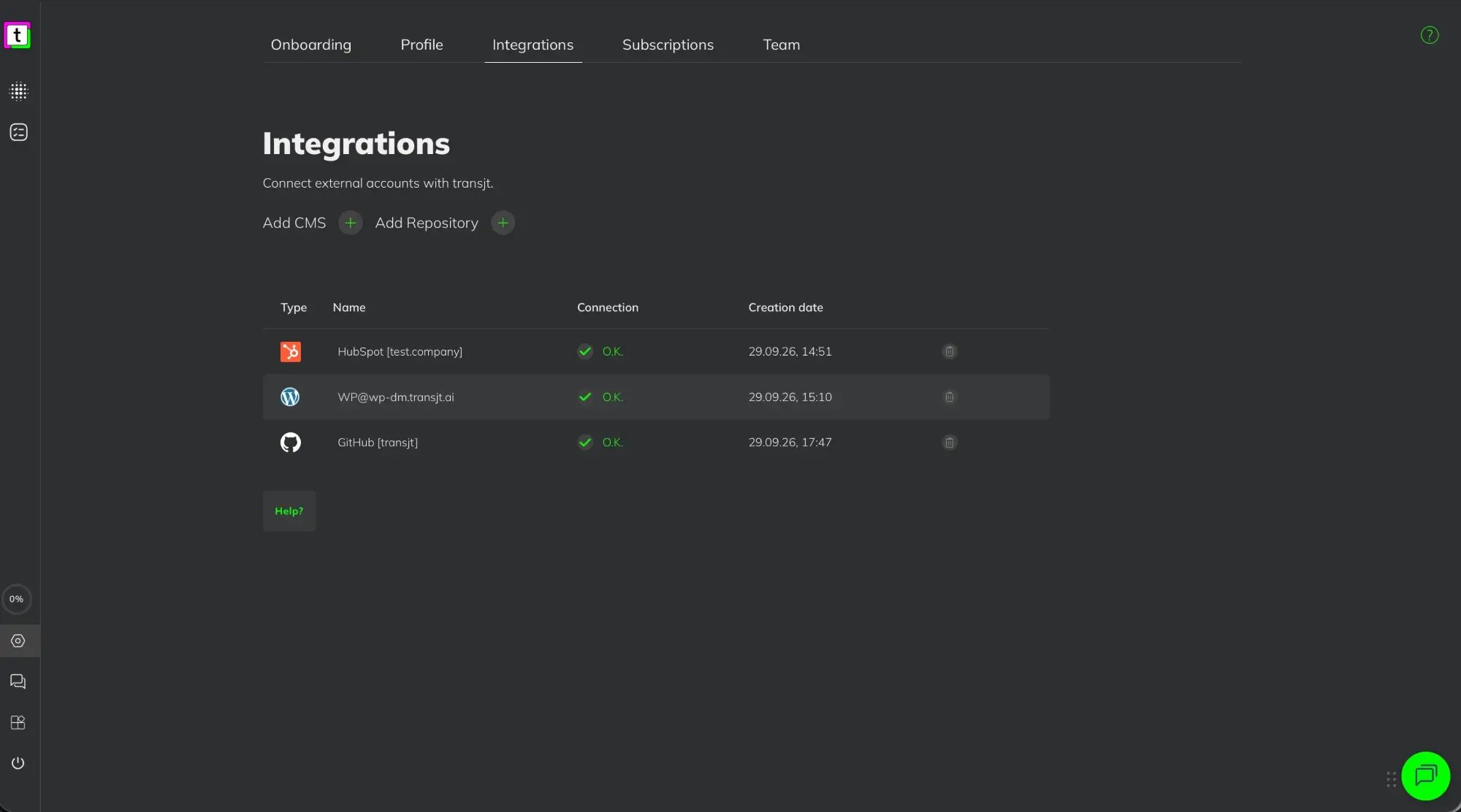
- In transjt, open Settings > Integrations.
- Click + next to Add Repository.
- In the Connect GitHub dialog, keep GitHub selected and click Proceed.
- A GitHub window opens. Log in if needed and authorize transjt.
- Back in transjt, the account appears in the list with the connection status O.K.
Option 2: connect while creating a project
- Create a project in Projects with +, name it and click Create.
- In the Source step, choose GitHub. Click Continue with GitHub. The Import step opens.
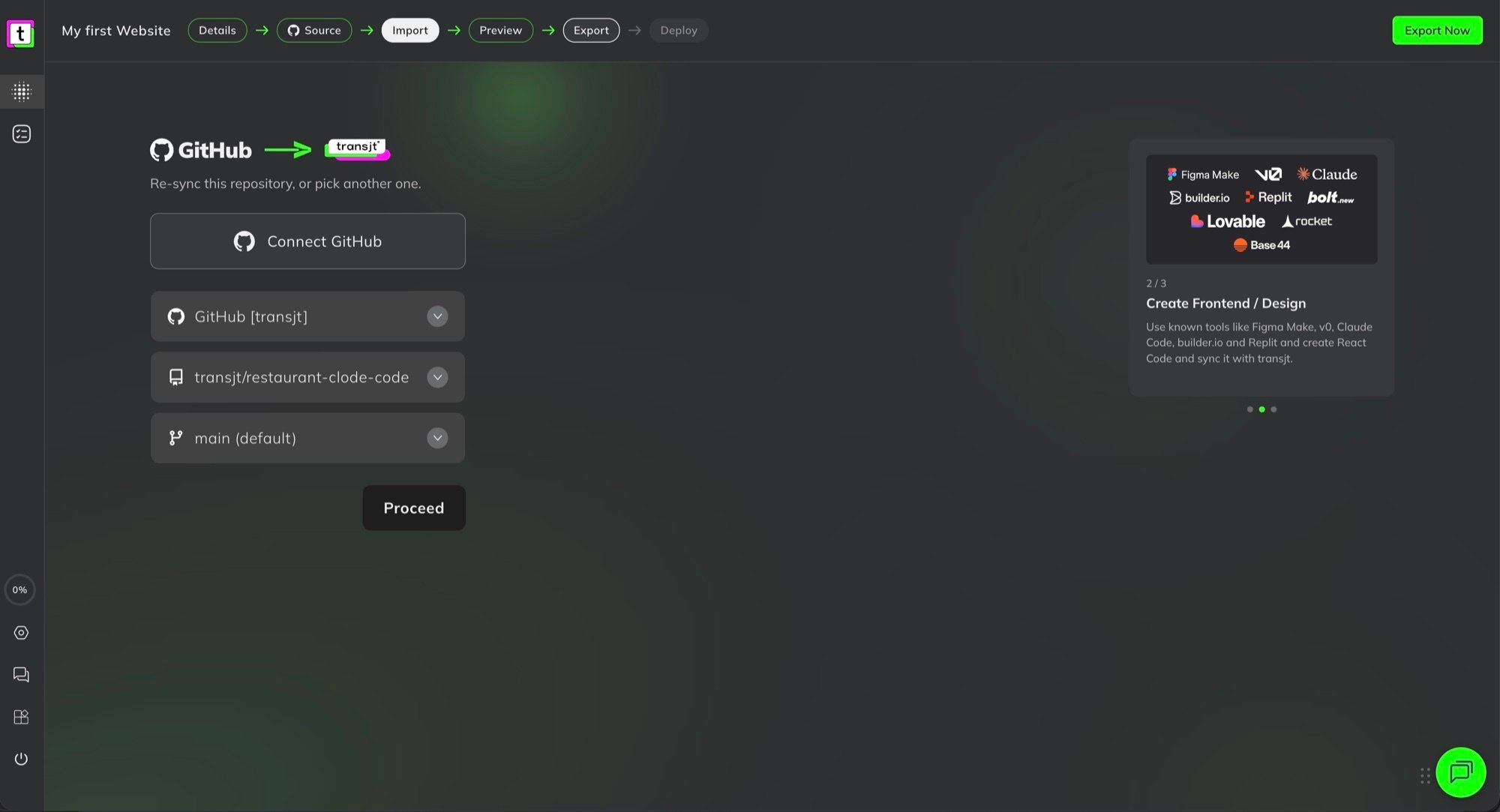
- Pick a connected GitHub account from the list, or click Connect GitHub to add one and follow the steps in the popup.
- Pick the repository and the branch:
- the repository is shown as owner/repository,
- the default branch is marked "(default)", usually main.
- Click Proceed.
Private and organization repositories
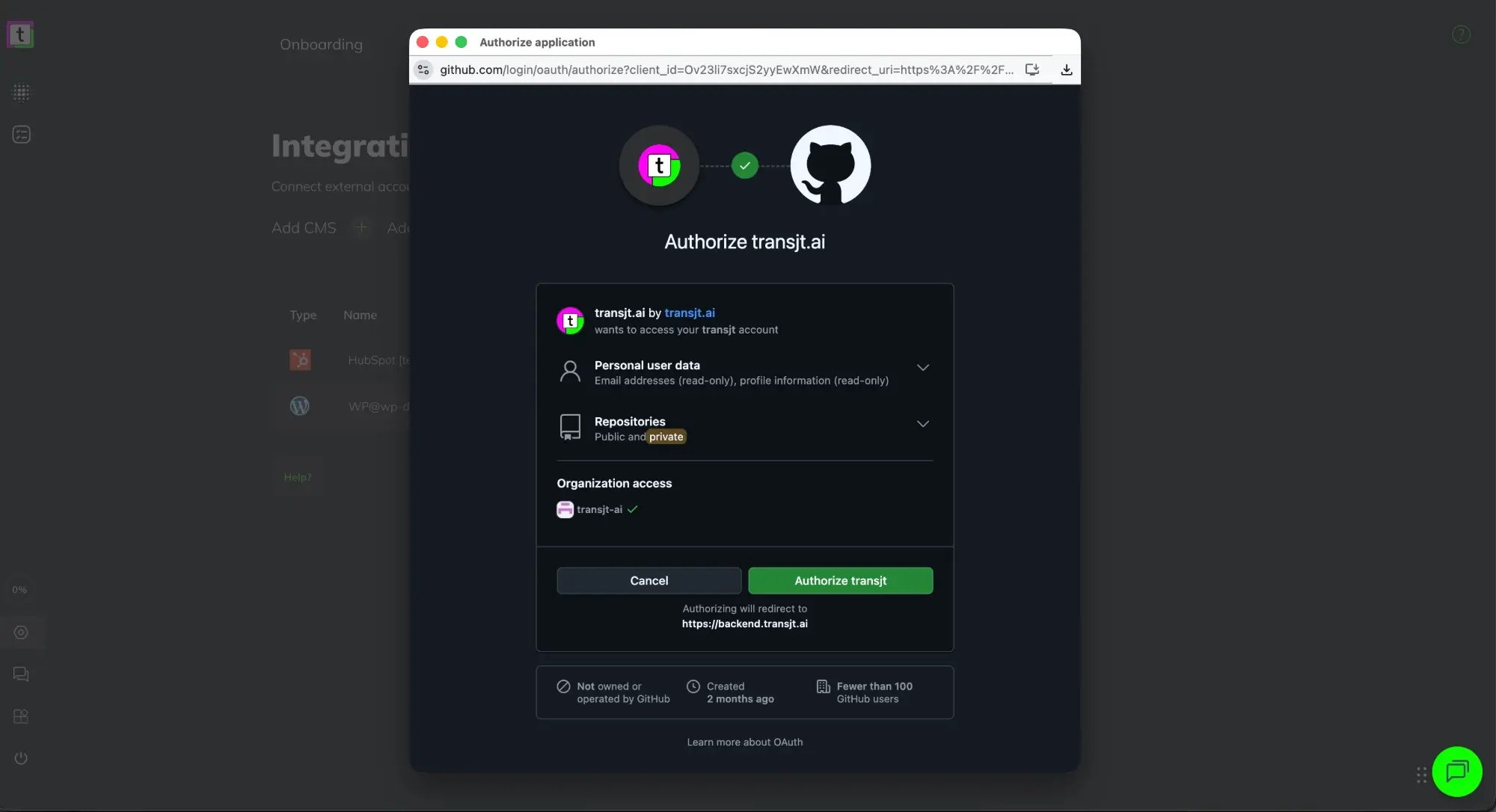
transjt can work with your public and private repositories, and with repositories of GitHub organizations you belong to. You choose this in the GitHub window that opens when you connect (Authorize transjt.ai). It shows what transjt gets access to:
- Personal user data: email addresses and profile information, read-only.
- Repositories: public and private.
- Organization access: grant access for each organization whose repositories you want to use.
Then click Authorize transjt. With private and organization access, all your repositories are listed together in transjt when you pick one.
Organization missing?
Many organizations only allow apps that an organization owner has approved (GitHub calls this "OAuth app access restrictions"). Until then, transjt only sees the organization's public repositories.
- If you are a member: click Request next to the organization in the GitHub window, and ask an owner to approve it.
- If you are an owner: in GitHub, open the organization's Settings > Third-party Access > OAuth app policy, click Review next to transjt.ai and then Grant access.
More in GitHub's guide Approving OAuth apps for your organization.
Missed the right access?
If you connected without the access you need:
- In GitHub, open Settings > Applications and remove transjt.ai.
- In transjt, connect GitHub again, and grant the access you need in the GitHub window.
Import your code
After you pick the repository and branch, transjt imports the code and builds the frontend of your project. You can then preview every page and export it.
Several GitHub accounts
You can connect more than one GitHub account, for example your own and a client's. Each one appears as a separate line under Settings > Integrations. When you create a project, choose the account that has access to the repository.
Link the account to a project
The GitHub account is linked to a project in the Import step, right after you choose GitHub as the source:
- Pick a connected account from the list, or click Connect GitHub to add a new one.
- Select the repository and the branch.
- Click Proceed.
When you come back to the Import step later, you can re-sync the same repository to bring in your latest code, or pick another repository.
Remove a connection
In Settings > Integrations, click the bin icon next to the GitHub account. Your projects stay as they are, but a project that used this connection is no longer linked. To use GitHub for it again, connect GitHub again.