Using your theme in HubSpot
After your first export, the transjt theme is in your HubSpot account. Here is how to build pages with it.
Before you start
- A HubSpot account connected in transjt, under Settings > Integrations or in the Deploy step of your project (Super Admin rights needed). See Connecting HubSpot.
- Any HubSpot plan works, including the free one.
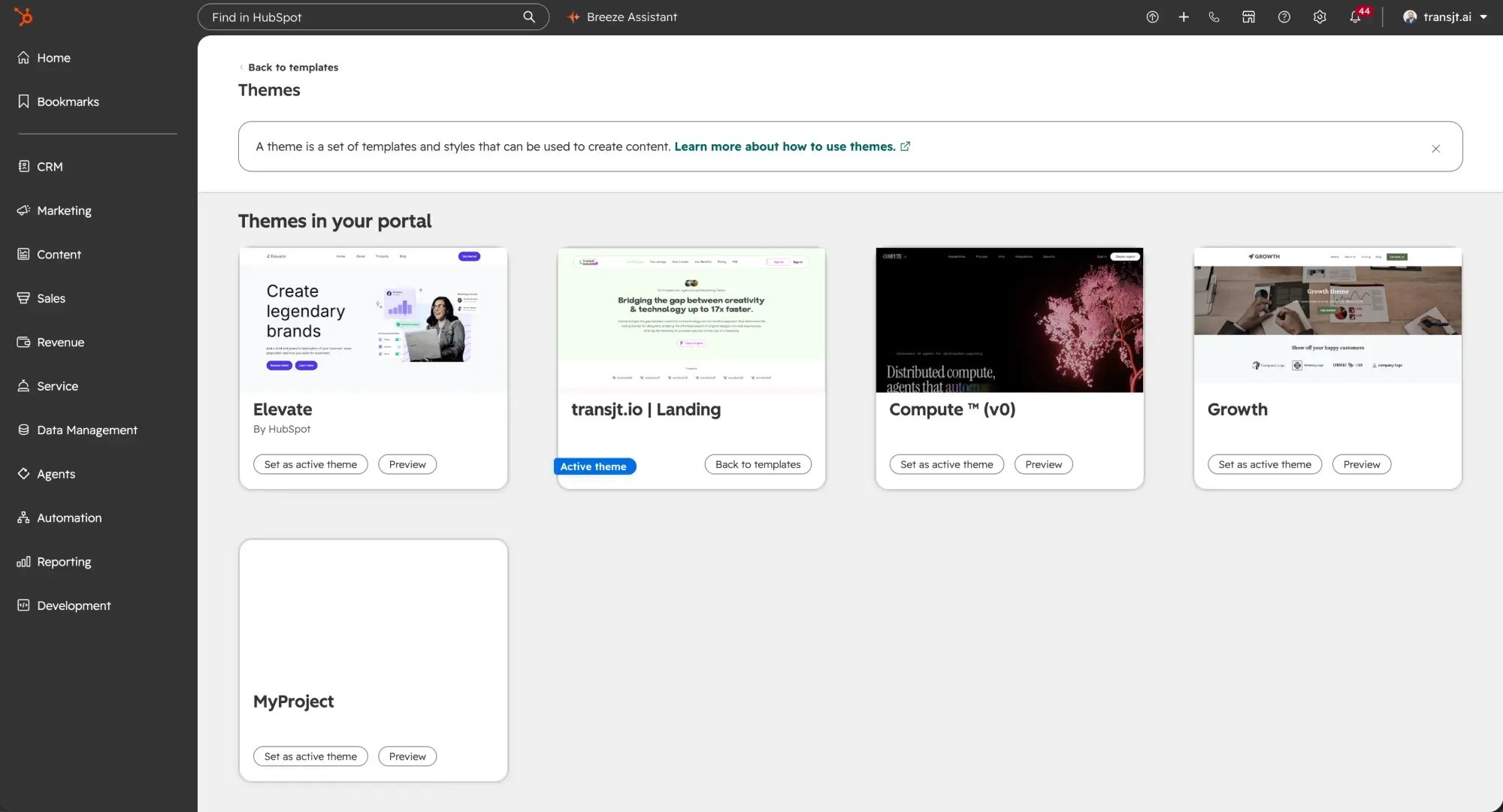
Find your theme
- In HubSpot, create a new website page (or a new website project).
- Pick your transjt theme. It carries the project name and the cover image you set in transjt.
The theme appears only after your first export.
Upload the theme manually
Prefer to install the theme yourself, for example in a HubSpot account that is not connected to transjt? Download it and upload it in HubSpot:
- In transjt, open your project and go to the Deploy step.
- Click Download Theme. You get the theme as a ZIP file. You can also download an older version under Previous Packages.
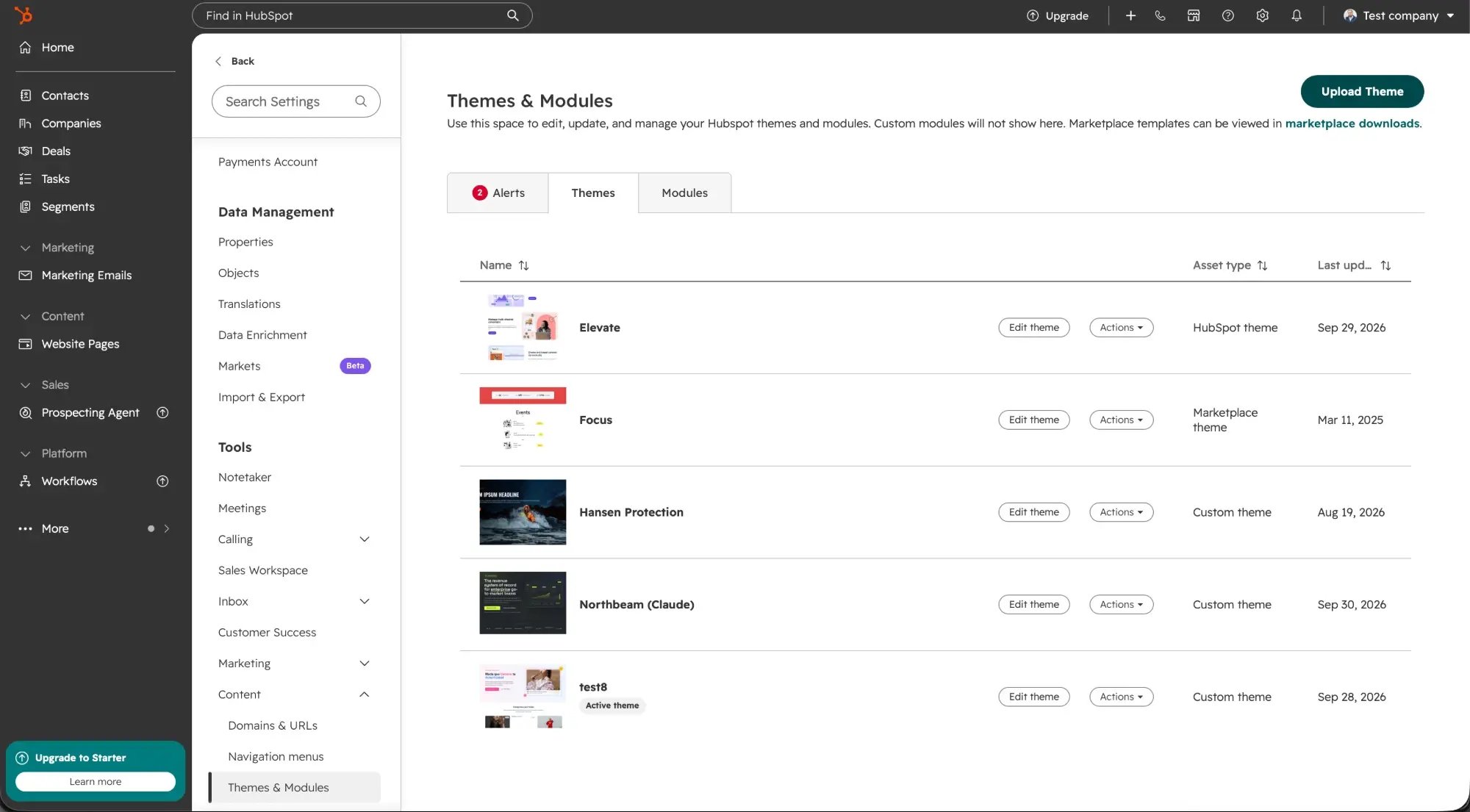
- In HubSpot, open Settings (gear icon) and go to Content > Themes & Modules.
- Click Upload Theme and select the ZIP file.
The theme then appears in the Themes list, and you can create pages with it as described above.
Build pages
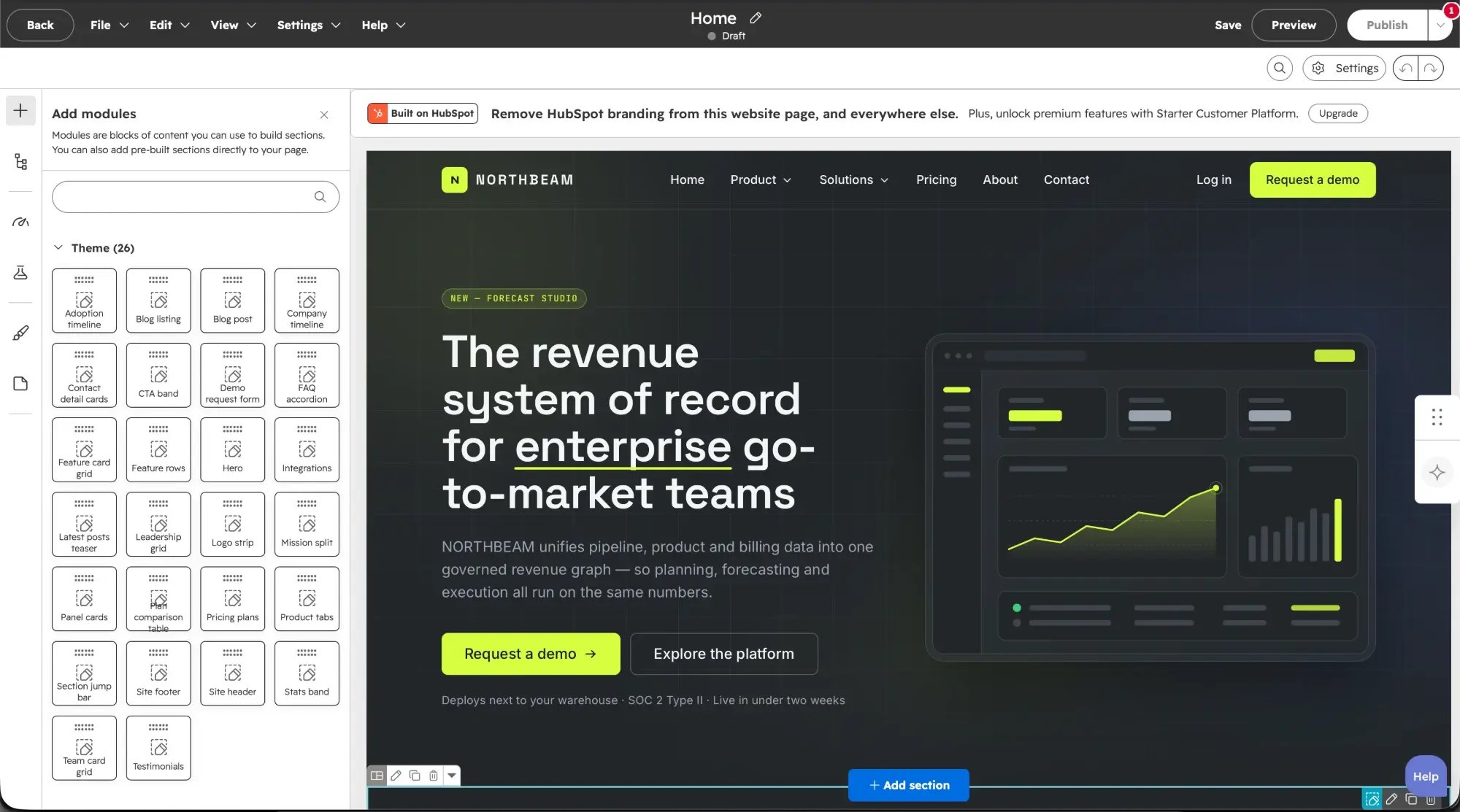
Your components arrive as native HubSpot modules. Add them to the page in HubSpot's drag-and-drop editor, rearrange them, and change texts and images in the module fields. No developer needed.
Header, footer and global components
Header and footer are global components by default: you edit them once, and the change appears on every page. The navigation follows your HubSpot menu, so a new page added to the menu appears in the header automatically.
You can make any other component global too. Set it as global in the transjt app, and reuse it on as many pages as you like.
Forms
A form in your design becomes a native HubSpot form, and submissions go straight into your CRM. You can link a designed form to an existing HubSpot form in a few minutes, without code.
Blog
Blog listing and blog post layouts become HubSpot blog templates. In Figma, import them with the type Blog and Blog Detail.
Re-exporting a component
If a component already exists in HubSpot when you export again, transjt asks whether to replace it or keep the existing one. You find this in Tasks, where finished imports are marked Ready for export. Click Continue to go on.
Your existing site is safe
transjt builds a separate theme and does not touch the pages you already have. Build new pages from the new theme when you are ready. Don't mix modules from the old and the new theme on one page.