transjt 3.6.0 brings two bigger additions. You can now move a whole website from almost any CMS to HubSpot or WordPress, and you can use your own fonts, uploaded or from Adobe Fonts. The projects overview also gets search, filters and sorting, and several screens are easier to use.
- Move a website from any CMS to HubSpot or WordPress
- Your own fonts in your themes, with missing fonts fixed per project and Adobe Fonts
- Search, filter and sort your projects
- Smaller improvements
Move a website from any CMS to HubSpot or WordPress
You can now move an existing website to HubSpot or WordPress yourself, in the transjt app. Enter the site’s address, and transjt scans the live site and rebuilds it page for page as a native theme, with the same design and the same content. The new site is usually ready in a few hours.
It works from WordPress, Wix, Squarespace, Webflow and Adobe AEM, from HubSpot if you’re moving to WordPress, and from any other site that is live, built with Joomla, Drupal, TYPO3 or by hand. Online shops can’t be moved yet. If the scan finds one, it tells you.
This is how a move works:
- Create a project and choose Migration as the source.
- Scan your site. On the Import step, enter the address and click Scan my site. The scan lists your pages and templates, blog posts, collection entries, languages and old addresses, including which addresses stay the same and which get a redirect. You can scan again until the export starts.
- Choose what moves. Everything is ticked at first. Untick what should stay behind, and the price follows what you keep.
- Check the free preview. transjt builds your home page and one more page you pick. Compare them with the live site side by side, with a swipe, or on their own.
- Export and deploy. Choose HubSpot or WordPress, add options if you want them, and pay once when you export. Then send the theme to your HubSpot account or your WordPress site.
Every move rebuilds your design as a native theme whose sections your team edits without code, and moves your texts, images, posts and entries in every language you keep. Forms send to HubSpot, or through Contact Form 7 on WordPress. Pages keep their address where they can, and every changed address gets a redirect. Your scripts and tags are connected as on the live site, the cookie banner first. Your domain and email stay where they are; at launch, only the website’s DNS records change.
At the export you can add options, each priced in the app: accessibility fixes, a performance and SEO pass, your tracking set up again, your old site’s own redirects, editor training, launch support or a personal manager.
Migrations start from $1,299, a one-time payment per site with no subscription. The money-back guarantee covers migrations and one-time exports, not subscriptions. Step-by-step guides: Migrate to HubSpot and Migrate to WordPress. All source CMSs: CMS migration.
Your own fonts in your themes
Google Fonts always worked on their own. Now you can use any other font as well. Upload the files once, under Settings › Fonts or right in a project, and every project can use them. transjt packs the fonts into the build, so the HubSpot or WordPress theme brings them along.
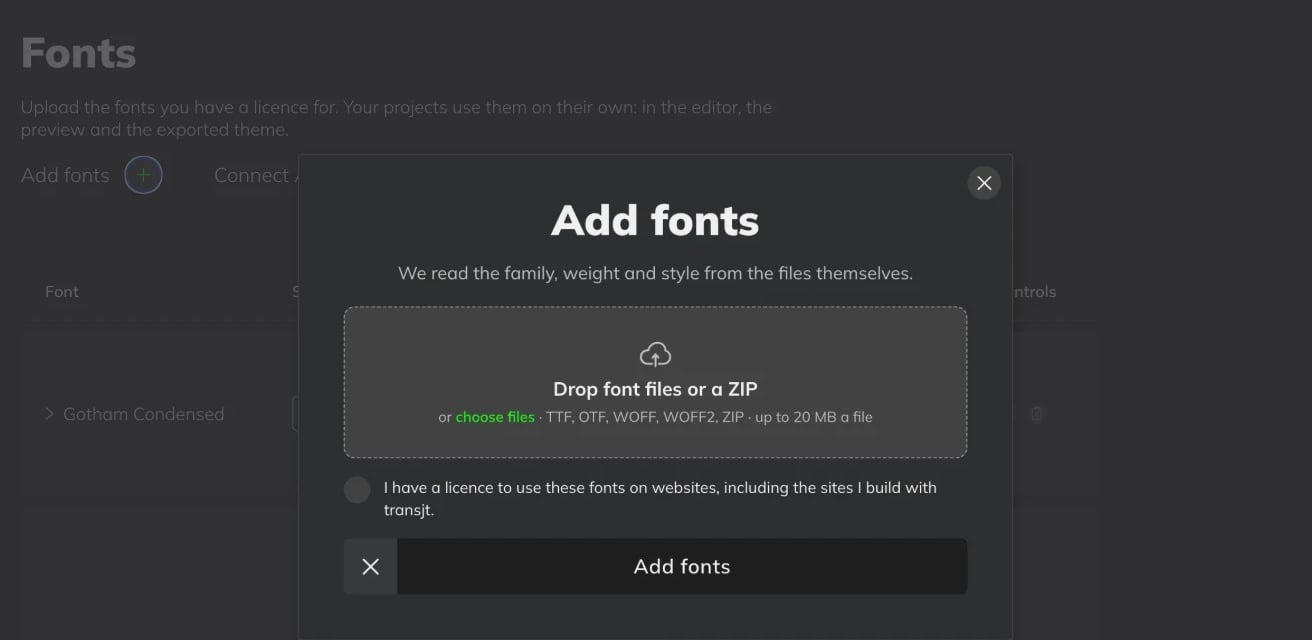
- Uploading. Drop font files or a ZIP: TTF, OTF, WOFF, WOFF2 or ZIP, up to 20 MB a file. transjt reads the family, weight and style from the files themselves.
- Licences. Each upload asks you to confirm that your licence covers use on websites, including the sites you build with transjt. A desktop licence often doesn’t, so check yours first.
- Managing. Settings › Fonts lists each family with its styles, the projects that use it and its files. You can replace the file of one style, or remove a style or a whole family; before anything is removed, transjt shows which projects it changes.
Fonts come with every plan. In 3.6.0 they work in projects from the Figma plugin.
Missing fonts in a project
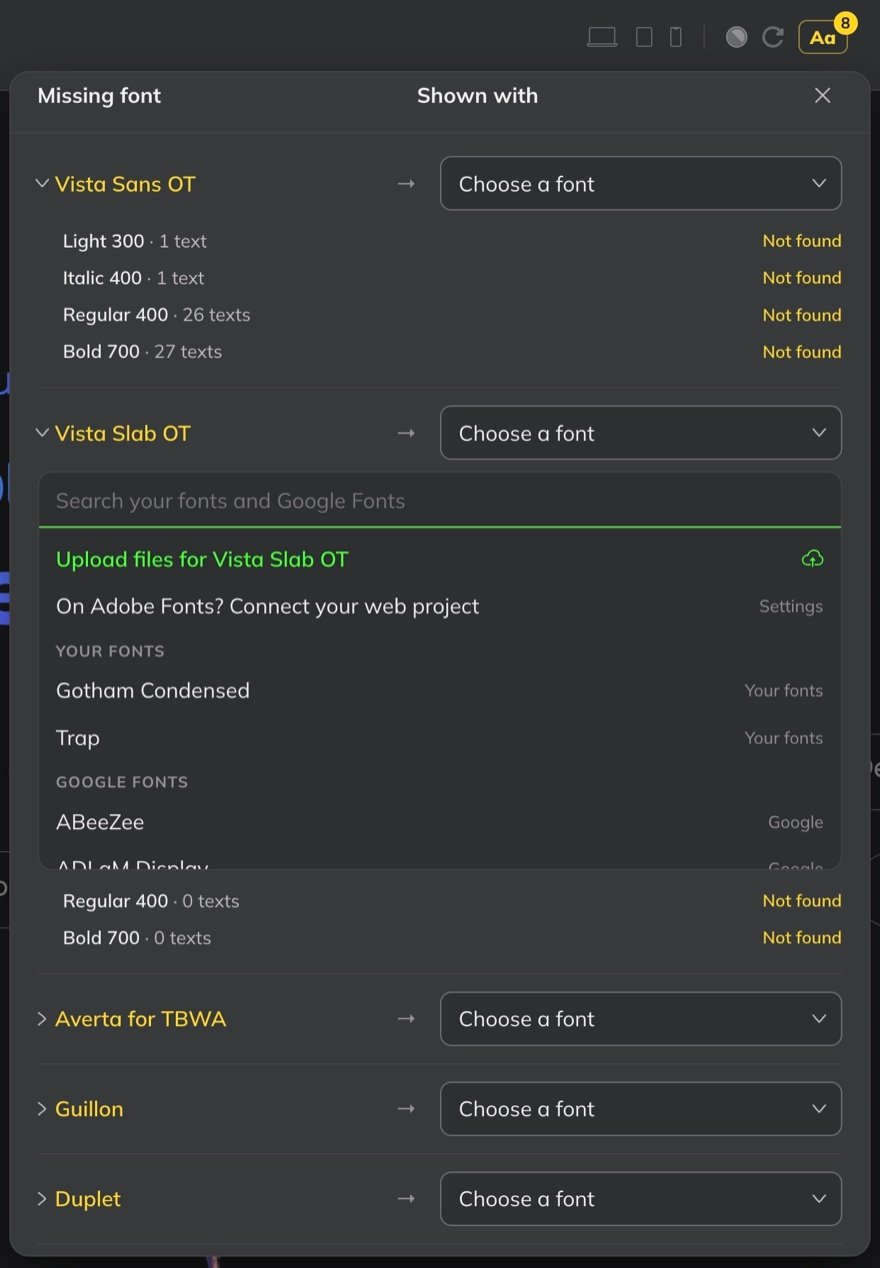
When a project uses a font transjt can’t find, the Aa button at the top right shows how many fonts are missing. It opens a list of each missing font with its styles, such as Light 300 or Bold 700, and how many texts use each style. For each one, upload its files, or pick one of your fonts or a Google Font to show instead. Your choice applies to this project, or to all your projects if you switch on Use my choice in all my projects, and you can undo it.

A missing font never holds up an export. The Export step shows one line while a font is missing, and the site uses a standard font in its place until you fix it.
Adobe Fonts
If your fonts come from Adobe Fonts, there is nothing to upload. Add the ID of your Adobe Fonts web project under Settings › Fonts, and its fonts are available in your projects. More in the fonts docs.
Search, filter and sort your projects
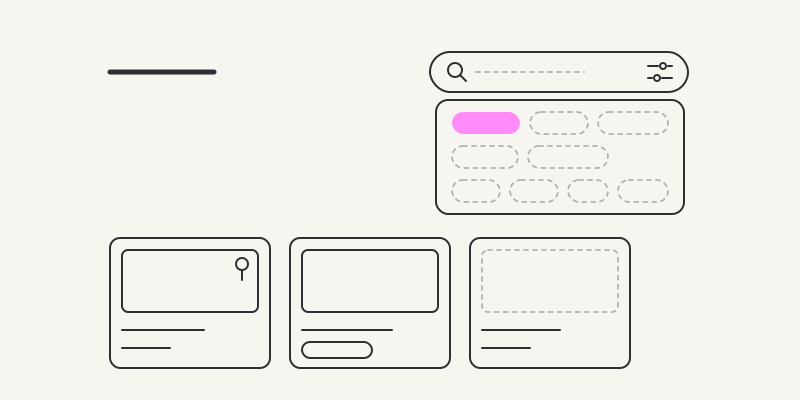
The projects overview has a search field next to its title, which finds projects by name as you type. The button inside the field opens the filters and the sort order. You can filter by source (Figma Design, GitHub or Migration) and by CMS (HubSpot, WordPress or none yet), and sort by newest, oldest, A–Z, type or last change. The field shows how many filters are on. When you leave the page, the search and the filters reset, and the sort order stays.
Two more changes on the same page:
- Pin to top. The pin on a card’s thumbnail keeps that project at the top, whatever the sort order. Pins are your own; teammates see their own pins.
- Where each project stands. A card shows one label while something runs, has failed or waits for you, such as Scanning, Pick pages or Export failed. A finished project shows none.
Smaller improvements
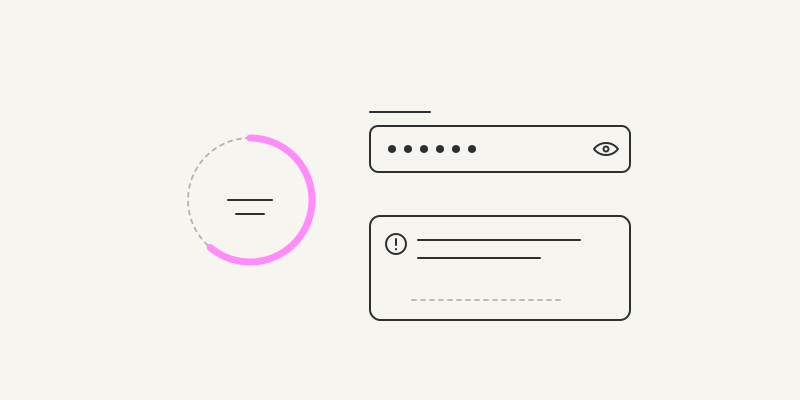
- The token display shows how many tokens you have left, and turns red when your balance runs low.
- If your tokens run out during an import, the component now says so plainly, with a link to top up, and the import can be started again.
- You can change your password in your profile.
- Cancelling a subscription first shows which projects would become view-only, then asks why you’re leaving.
- Sign-in errors are written in plain words instead of error codes, and an empty GitHub repository now says so when you import it.
Questions about the release, or a site you’d like to move? Write to support@transjt.ai.