Figma Logo – Figma to HubSpot or WordPress
WordPress CMS Logo – Figma to WordPress CMS

Convert Figma to WordPress Without Coding

For years, converting a Figma design to WordPress meant a painful design-to-development handoff — designers perfected pixels in Figma while developers spent weeks rebuilding them by hand, blowing budgets and timelines. In 2026 that's over: with AI-powered design conversion you can convert Figma to WordPress without writing code, turning your design into a fully functional, pixel-perfect WordPress site in minutes. Whether you're a solo designer unlocking new revenue, a freelancer shipping sites 5x faster, or a business owner skipping expensive agency retainers, this guide gives you the exact code-free, no-code blueprint — using transjt.ai to do the heavy lifting.

Start for free
Trusted by:
vendortell-3
sparkforce
tier-one
learnslice
orixcom
merritt
poscash
md market design
worky
qxo
sweep
traceair
Remotelock
nexapp
travelnest-1
america AA-1
From design to website

How code-free Figma to WordPress conversion actually works

WordPress AI Powered Conversion_
Tthe fast path

AI-powered conversion

A tool reads your Figma layout, layer naming, Auto Layout structure, and design tokens, then generates an editable WordPress result automatically. This is where transjt.ai lives: you design in Figma, run the transjt plugin, and get a custom, responsive theme — with up to 90% of the work done — instead of a developer spending 240+ hours rebuilding it by hand. Because transjt outputs a real custom theme (not just a page-builder dump), you keep clean, editable code and CMS / Gutenberg fields.
The manual path

The visual-builder route

Prefer rebuilding by hand? You can recreate your design in a visual builder like the WordPress Block Editor (Gutenberg + Full Site Editing) or Elementor/Divi, matching your Figma tokens by eye. It gives total control, but it's slow and you're rebuilding everything manually — the exact bottleneck AI conversion removes.
The manual path
Other Converter
Alternatives

Other Converter

Other AI converters exist (UiChemy, Figmentor, and similar Elementor-focused plugins). They're fine for dropping frames into a page builder, but they stop at WordPress. transjt.ai's edge is that the same design also converts to HubSpot CMS — so if you ever migrate or run both, one Figma file covers both platforms. See our transjt vs UiChemy comparison for the full breakdown.

Conversion methods compared

Not every project calls for the same approach. The fastest route isn't always the right one, and total manual control comes at the cost of hours you may not have. Before you pick a method, it helps to see how the two paths actually stack up on the things that matter day to day — speed, accuracy, the learning curve, and how editable the final result is. The table below compares AI-powered conversion with transjt.ai against the traditional visual-builder route, so you can match the method to the kind of site you're building rather than defaulting to whichever tool you opened first.

Feature / Metric AI conversion (transjt.ai) Visual Builders (Elementor / Gutenberg)
Speed ⚡ Minutes per page ⏳ Hours per page
Learning curve Low (needs a tidy Figma file) Medium (learn the WP/builder interface)
Design accuracy ~90–95% out of the box, minor tweaks 100%, but manually dialed in by eye
Output Clean custom theme + CMS fields Page-builder blocks (heavier)
Also export to HubSpot ✅ Yes ❌ No
Best for Landing pages, full sites, Blog, agencies at scale     One-off complex layouts
Open in Figma
A converter is only as good as the file you feed it.

Step-by-step: code-free conversion blueprint

Auto-layout-1
Step 1

Prepare your Figma file

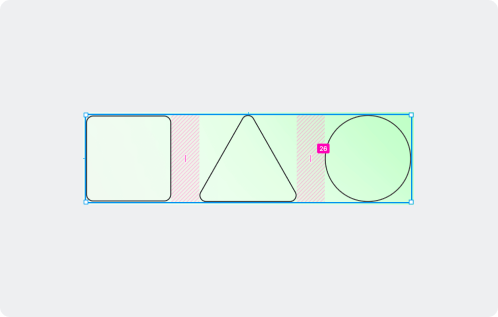
  • Enforce Auto Layout on buttons, headers, and containers — it maps directly to responsive CSS Flexbox logic.
  • Group into sections that mirror real page regions (Hero, Features, Footer). transjt treats these as theme sections/components.
  • Design with components, not flattened pages — single, reusable components convert far more reliably than one giant frame.
Step 2

Set your global design tokens

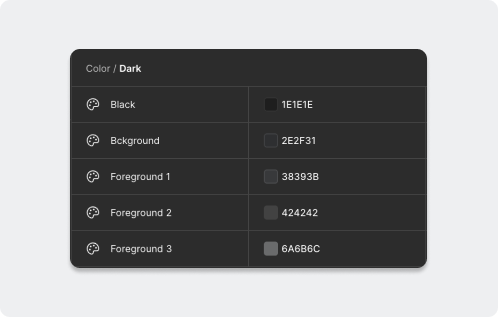
Label your colors, spacing, and type scales explicitly in Figma (e.g. Primary-Brand, Accent-Green). transjt reads your Figma global styles and maps them into the generated theme, so your brand system carries over instead of being re-entered by hand.
Design Tokens
Run transjt plugin
Step 3

Run the transjt.ai plugin

  • Open your finished desktop mockup in Figma.
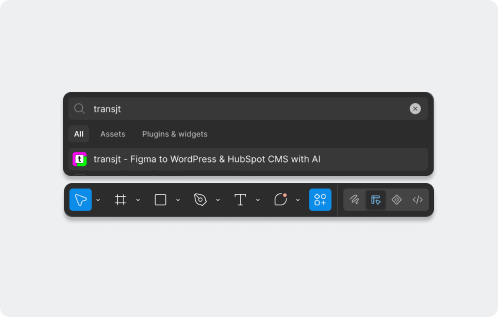
  • Launch the transjt Figma plugin (Plugins → transjt).
  • Select the frames/components you want to convert.
  • Choose WordPress as your project type.
  • transjt's AI generates the custom theme and pushes it to your transjt.ai workspace.
Step 4

Export into WordPress

  • Install and activate the transjt plugin on your WordPress site.
  • Connect your site to your transjt.ai workspace.
  • Export your generated theme from transjt directly into WordPress.
  • Your responsive, custom theme is now live in WordPress — ready to create pages and content.
Export Theme to WordPress
Post-import polish & responsiveness_
Step 5

Post-import polish & responsiveness

  • Check alignment: confirm images, text, and buttons didn't subtly shift or wrap.
  • Test viewports: toggle tablet and mobile previews; adjust any oversized mobile headings.
  • Wire up dynamic content: connect blog/CMS fields where your design calls for them.

Pitfalls to avoid

With transjt you can build any component and website: You only need some time for a quick refinement.

Uncompressed assets

Don't ship heavy PNGs straight from Figma. Use SVG for logos/icons and convert photos to WebP before import.


Skipping cross-browser testing

Looks perfect in Chrome ≠ perfect in Safari/Firefox. Do a quick device pass before launch.

Messy Figma files

The #1 cause of bad output. Tidy layers + Auto Layout + components = clean conversion.

Plugin bloat

Loading WordPress with 40 add-ons tanks performance. A clean custom theme (what transjt outputs) beats stacking page-builder plugins for Core Web Vitals.

The verdict: is no-code right for you?

The era of demanding weeks of custom frontend work for standard marketing and business sites is fading. If your project doesn't need proprietary databases, custom membership logic, or hyper-specific integrations, AI-powered conversion is a genuine game changer — it shrinks the build from weeks to minutes, slashes overhead, and lets you iterate on the fly.

Validate your layout, trust your Auto Layout boundaries, and let transjt.ai do the heavy lifting — for both WordPress and HubSpot.

→ Start converting your Figma design with transjt.ai

FAQs

Figma to WordPress with AI

Yes. With an AI converter like transjt.ai you design in Figma and export a custom, responsive WordPress theme automatically — no HTML, CSS, or PHP required. You only adjust final details visually.